If you encounter software malfunctions or playback issues, please check the following:
¶ Download & Installation
¶ Unable to Download the Editor.
- You can download it from the Dreamtonics Account page.
- Instrument X is not available for Linux.
- Please try again later in a stable network environment.
¶ Errors During Installer Execution:
- Please close all instances of Instrument X and any DAW software before installing or updating the editor.
- Login to your PC with an account that has administrator privileges.
- Please try restarting your PC once.
- Please completely uninstall Instrument X and download the latest version again from your Dreamtonics Account to reinstall.
¶ "Windows protected your PC" appears and prevents installation
- Click [More info] on the blue screen to reveal the [Run anyway] button, then click it to continue.
¶ "An error occurred while replacing the existing files" appears and the plugin cannot be overwritten during installation
- Please refer to "Deleting Plugins" at the bottom of the "Perform a Complete Uninstallation" page and try manually deleting the affected plugin. This issue is most commonly caused by a DAW update overwriting the plugin's access permissions. As a result, subsequent software updates may fail with this error.
¶ Unable to Download Instrument Expansions
- To download an instrument expansion, you must first install the editor. → “Installing and Activating the Editor”
- Instrument X instrument expansions can be downloaded from the editor's Product Manager. They cannot be downloaded from a web browser. → “Installing Instrument Expansions”
- If an error occurs, please try again after waiting for a while in a stable network environment.
- Please try again after updating the editor to the latest version.
- Please delete the following folder and its contents, then recreate the folder before trying to download again:
Windows:C:\Users\<username>\AppData\Roaming\Dreamtonics\Instrument X\databases
macOS:/Users/<username>/Library/Application Support/Dreamtonics/Instrument X/databases
On Windows, you can jump directly to the folder by entering
%appdata%\Dreamtonics\Instrument Xinto the File Explorer address bar.
On macOS, press Command+Shift+G in Finder, then enter~/Library/Application Support/Dreamtonics/Instrument Xto jump directly to the folder.
¶ Instrument Expansion Does Not Appear on the Track After Downloading
- Delete the following folder and its contents, then recreate the folder and try downloading again.
Windows:C:\Users\<username>\AppData\Roaming\Dreamtonics\Instrument X\databases
macOS:/Users/<username>/Library/Application Support/Dreamtonics/Instrument X/databases
On Windows, enter
%appdata%\Dreamtonics\Instrument Xin the File Explorer address bar to jump directly to the folder.
On macOS, press Command+Shift+G in Finder, then enter~/Library/Application Support/Dreamtonics/Instrument Xto jump directly to the folder.
¶ Software Won't Start
- Configure your security software or OS security settings to exclude Instrument X from virus scans.
- Please completely uninstall Instrument X and download the latest version again from your Dreamtonics Account to reinstall.
¶ Plugin Doesn't Appear in Your DAW:
- Please check if the plugin is installed in the designated folder. → "Plugin Install Location"
- Please verify that your DAW settings are configured to read plugins from the folder where Instrument X is installed.
- Open your DAW's plugin manager and rescan the plugin folder.
- Instrument plugins will appear in the DAW's instrument sound source list, while ARA plugins will appear in the DAW's effects list or ARA plugin list. Please check again to ensure you are not looking at a different menu. → "Plugins and DAW Integration"
¶ Message Stating "Failed to start the plugin in ARA mode":
- Please refer to "ARA Bridge Mode Setup" and "Full ARA Mode Setup".
¶ A white screen is displayed or "Script Error" appears
If a white screen appears immediately after logging in, it's possible that the welcome screen that is displayed at startup is not loading properly.
Additionally, a white screen or "Script Error" screen may also be displayed when the Product Manager fails to load.
- If this issue occurs on Windows, it's possible that the necessary runtime is not installed.
Close Instrument X, download and install the "Evergreen Bootstrapper" from the Microsoft Edge WebView2 page, and then try again. - If the white screen persists, it will automatically reload after 15 seconds. Please wait for 15 seconds to see if the issue is resolved.
- Try again in a stable network environment after waiting for a while.
- You can skip the welcome screen by turning off [Show Welcome Screen on Startup] in Settings.
¶ Unable to Open a Specific Project File:
- Please contact Dreamtonics Support and submit the problematic project file. We will investigate it and consider a fix for future updates.
¶ Login & Activation
¶ Can't Login:
- Please completely uninstall Instrument X and download the latest version again from your Dreamtonics Account to reinstall.
- Please try again later in a stable network environment.
- If you are connected to the network using a VPN, Instrument X may not be able to connect to the server. Please try logging in from a different network.
- If you are connecting through a corporate or educational institution's network, Instrument X may not be able to connect to the server. Please consult with your IT department and consider adding Instrument X to the whitelist.
¶ Unable to Sign In or Download Instrument Expansions When Accessing from China
Your region may not have been detected correctly. You can fix this using the following methods.
- Close Instrument X (or your DAW) and open the following file with a text editor.
Windows:C:\Users\<username>\AppData\Roaming\Dreamtonics\Instrument X\settings\settings.xml
macOS:/Users/<username>/Library/Application Support/Dreamtonics/Instrument X/settings/settings.xml
On Windows, enter
%appdata%\Dreamtonics\Instrument Xin the File Explorer address bar to jump directly to the folder.
On macOS, press Command+Shift+G in Finder, then enter~/Library/Application Support/Dreamtonics/Instrument Xto jump directly to the folder.
- Add
forceServerArea="cn"to the<General ... />section.

- Launch Instrument X and check if you can log in.
¶ Use the Software on a Different PC:
- To switch devices, simply log in on the new device. There's no need to log out of the original device.
- If you are using an offline license, please deactivate the offline license first. → "Offline License"
¶ Deactivating an Offline License from a Broken PC on Another PC
- Due to security reasons, the possibility for the user to deactivate an offline license from another device is not provided.
- Offline license resets for unavoidable circumstances are handled through Dreamtonics Support (support is provided in English only). When contacting support, select "Activation: Offline License Reset" and provide the email address associated with your Dreamtonics account.
¶ When selecting the track's instrument expansion, a "Log In" dialog appears and no sound is produced
- Please update the editor to the latest version.
- Uninstall the instrument expansion from the Product Manager, then install it again.
- Delete the contents of the folder below, then install the instrument expansion again.
Windows:C:\Users\<username>\AppData\Roaming\Dreamtonics\Instrument X\databases
macOS:/Users/<username>/Library/Application Support/Dreamtonics/Instrument X/databases
On Windows, enter
%appdata%\Dreamtonics\Instrument Xinto the File Explorer address bar to jump directly to the folder.
On macOS, press Command+Shift+G in Finder, then enter~/Library/Application Support/Dreamtonics/Instrument Xto jump directly to the folder.
¶ Crashes or Freezes:
- Please completely uninstall Instrument X and download the latest version again from your Dreamtonics Account to reinstall.
¶ Crashes Started After Updating Your OS:
- We have received reports that system files may sometimes become corrupted during OS updates. Reinstalling Instrument X, as described above, may resolve the issue.
¶ For Other Crashes or Freezes:
- If the issue persists even after reinstalling, please contact Dreamtonics Support and submit the problematic project file and a screenshot of the error message. We will investigate it and consider a fix for future updates.
¶ Operation
¶ Change the Language of the Interface:
- You can change the language in the settings. → "Settings"
- If only English is available as a language option, please completely uninstall Instrument X and download the latest version again from your Dreamtonics Account to reinstall.
¶ Unable to select an instrument expansion
- After installing the editor, install the instrument expansion from the Product Manager. → "Installing an Instrument Expansion"
- If you have installed the instrument expansion and the message "The following instruments have been downloaded and installed" is displayed, but you cannot select it in the track, delete the folder below and its contents, recreate the folder, and then try downloading it again.
Windows:C:\Users\<username>\AppData\Roaming\Dreamtonics\Instrument X\databases
macOS:/Users/<username>/Library/Application Support/Dreamtonics/Instrument X/databases
On Windows, enter
%appdata%\Dreamtonics\Instrument Xinto the File Explorer address bar to jump directly to the folder.
On macOS, press Command+Shift+G in Finder, then enter~/Library/Application Support/Dreamtonics/Instrument Xto jump directly to the folder.
¶ Unable to Open or Close Various Areas and Panels:
- You need sufficient window size to open and close them. Please try expanding the window.
- Quitting Instrument X (or your DAW) and deleting the following setting files might resolve the issue. Restart the editor afterwards.
Windows:C:\Users\<username>\AppData\Roaming\Dreamtonics\Instrument X\settings\settings.xml
macOS:/Users/<username>/Library/Application Support/Dreamtonics/Instrument X/settings/settings.xml
On Windows, enter
%appdata%\Dreamtonics\Instrument Xinto the File Explorer address bar to jump directly to the folder.
On macOS, press Command+Shift+G in Finder, then enter~/Library/Application Support/Dreamtonics/Instrument Xto jump directly to the folder.
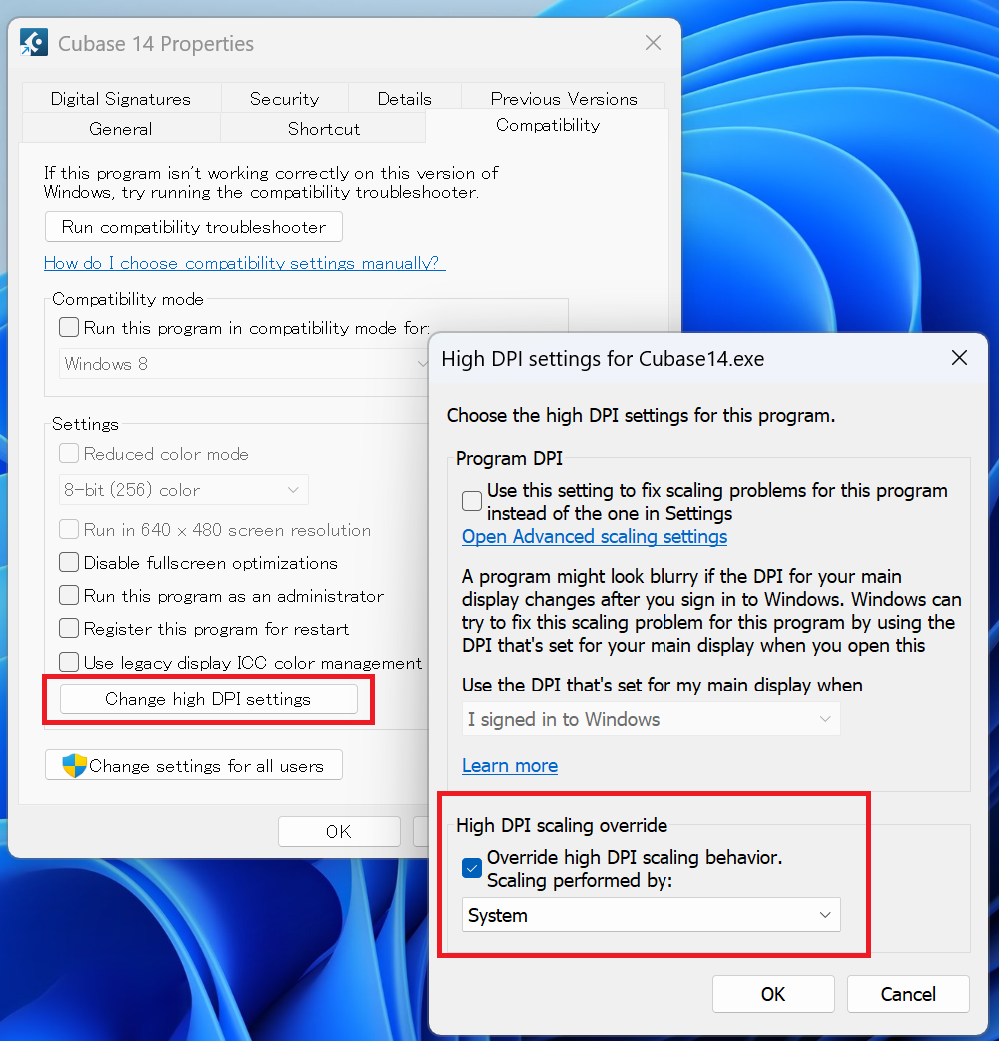
¶ On Windows, the plugin UI or right-click menu appears too large or too small
When using a high-resolution monitor on Windows (with a high display scaling), some parts of the UI may appear unusually large or small depending on the DAW.
Adjusting the following settings may help resolve the issue.
- Right-click the DAW icon and open Properties.
- Go to [Compatibility] > [Change high DPI settings].
- Check [Override high DPI scaling behavior] and select [System].
¶ In Logic Pro, the Plugin Window Extended Beyond the Screen and Cannot Be Resized
- For AU plugins, double-clicking an empty area in the transport section will automatically resize the window.

¶ When duplicating a note group and modifying its contents, the original note group is also overwritten with the same changes
- In linked groups, note and parameter control point edits are shared. To unlink them, right-click on the note group and select [Unlink Group]. → "Note Groups"
- When duplicating a track, selecting [Duplicate Track (Unlinked)] will prevent the duplicated note groups from being linked. → "Arrangement"
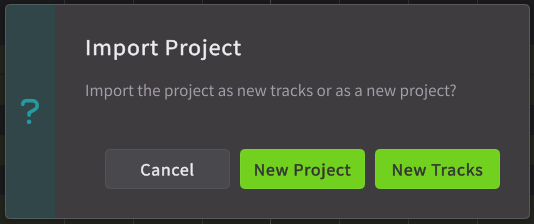
¶ Tempo from MIDI or MusicXML Not Imported
When importing, selecting [New Project] will close the current project and create a new project with the tempo from the MIDI or MusicXML applied.
If [New Tracks] is selected, only a track will be added to the existing project, so the current project's tempo takes priority and the tempo from the MIDI or MusicXML will not be imported.
¶ Tempo and Playback Position Differ in ARA Bridge Mode in Logic Pro
- Please double-check that the ARA Bridge Link is illuminated and that dummy audio is placed on the ARA track. → ARA Bridge Mode Setup
- Display the tempo lane in your Logic Pro project, and if the first tempo marker is not at the beginning of the project, move it to the start.
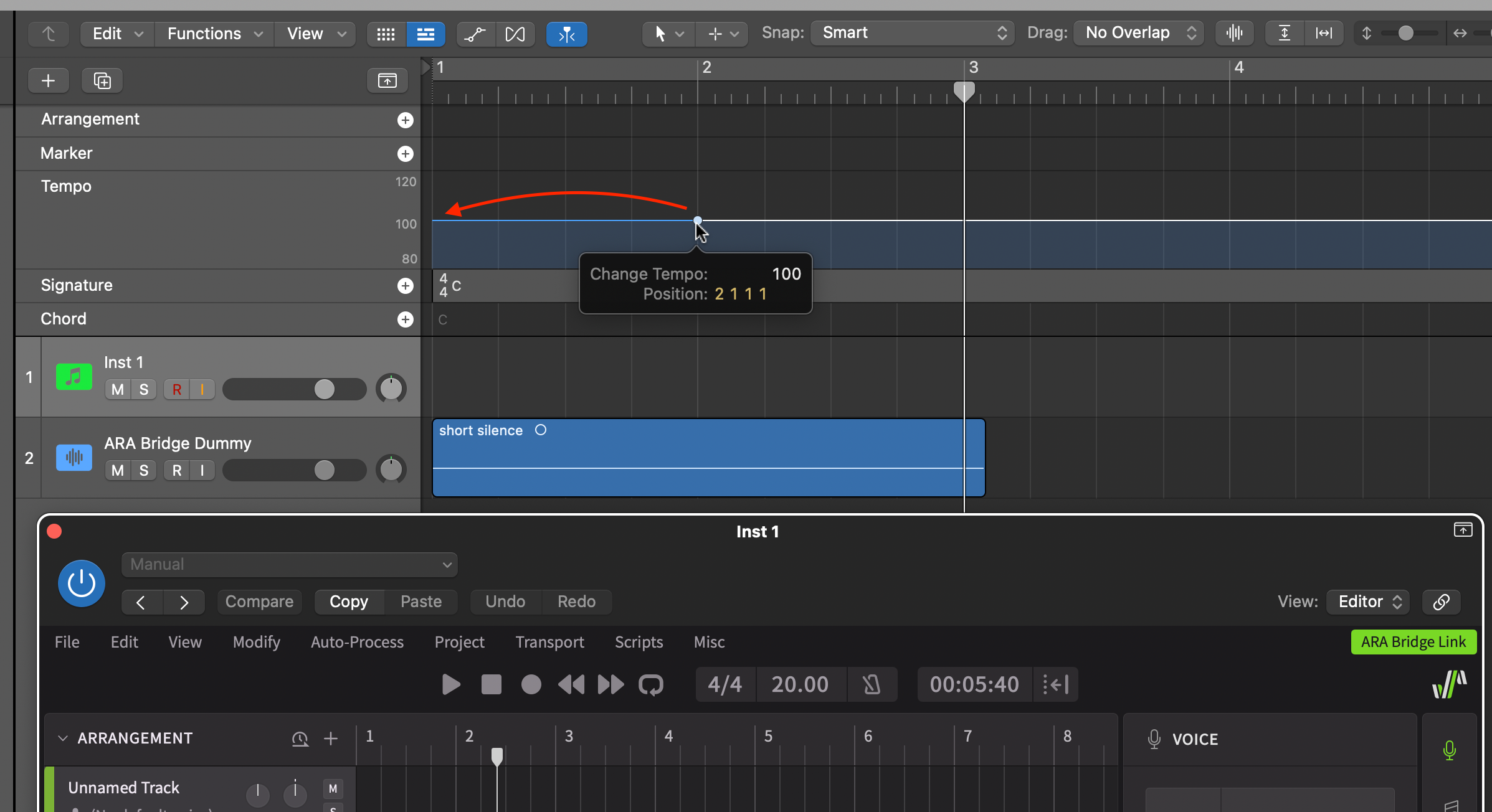
Normally, when setting the overall project tempo, Logic Pro automatically creates a tempo marker at the beginning of the project. However, if this marker has been moved to a later position, the tempo and playback position may not sync correctly.
¶ Render & Playback
¶ No Audio Is Generated / No Sound Is Produced
- During the trial period, the instrument expansion can render up to 150 notes per note group.
- Check the Product Manager panel to make sure that the instrument expansion is registered to your product.
- In the Track area, check whether any tracks are set to solo or mute.
¶ Bounce in Your DAW and There is No Audio:
- Please make sure that both the DAW track and the Instrument X track are not muted.
- Please note that trial voices do not allow bouncing audio.
- In Full ARA mode, only audio from the Synth Track will be bounced; audio from Local Tracks will not. → "Full ARA Mode Setup"
¶ Playback Stops Midway in Reaper
- In Reaper, playback automatically stops at the end of the project. Since Instrument X inputs notes inside the plugin rather than on the DAW timeline, Reaper may misjudge the project length, causing playback to stop prematurely.
- Adding an audio file on another track or placing an empty MIDI clip as a dummy will allow playback to continue up to that point.
¶ In Bitwig Studio, Sound Only Plays When the Track Is Selected
- If the plugin only produces sound when the track using Instrument X is selected, and the sound stops when another track is selected, please change the track’s monitoring setting in Bitwig to Off (Never monitor input).