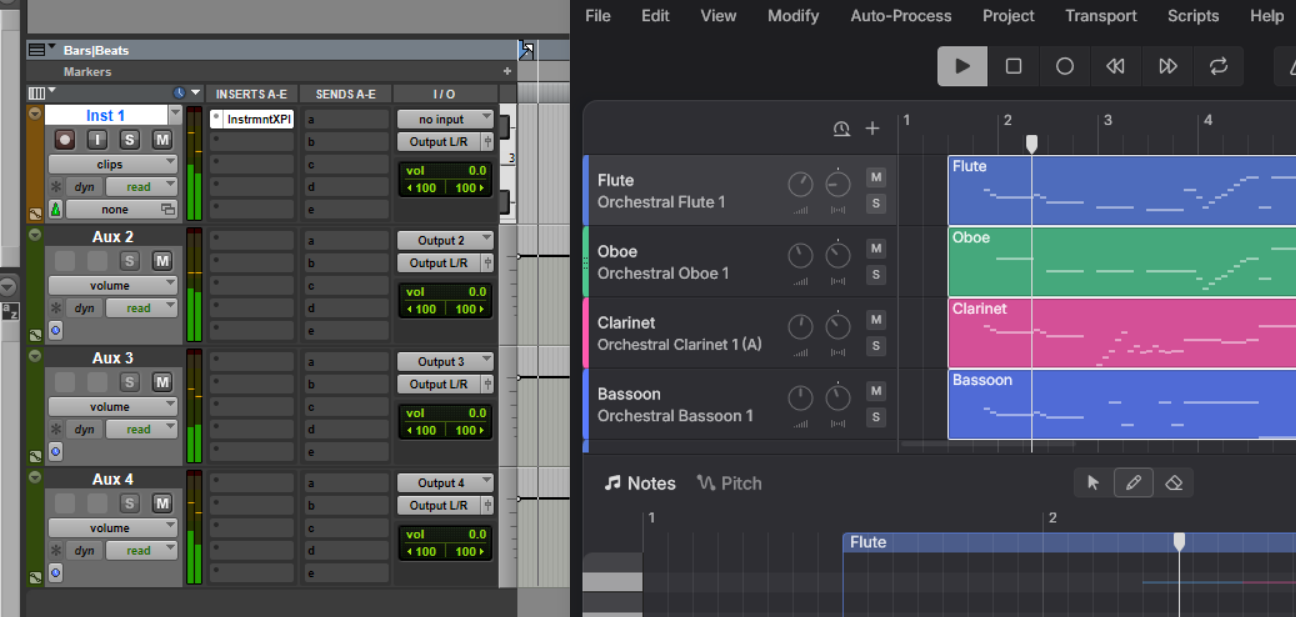
For more information on the types of plugins included with Instrument X and their differences in usage, please refer to "Plugins and DAW Integration".
¶ Basic Usage
With the Instrument X plugin, you need to enter notes, techniques and articulations in the plugin's editor rather than in the DAW.
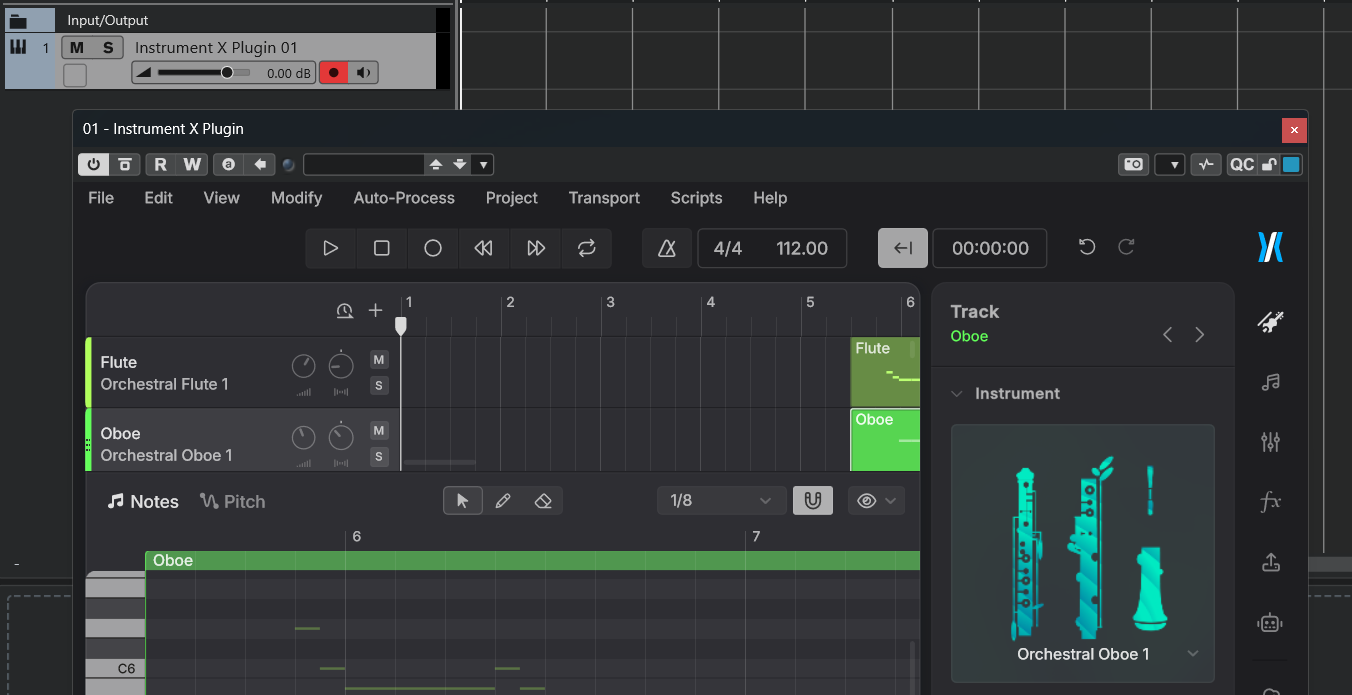
Unlike typical software synthesizers, Instrument X renders audio beforehand.
Due to standard MIDI specifications, the plugin cannot retrieve the project's overall tempo and notes from the DAW before playback.
Therefore, you need to enter notes, techniques and articulations in the plugin's editor in advance.
-
First, set the tempo and time signature within the plugin.
When using ARA Bridge Mode, the DAW’s tempo and the plugin’s tempo are automatically synchronized. However, if you are not using ARA Bridge Mode, the DAW’s tempo cannot be imported automatically, so you will need to set the tempo and time signature separately inside the Instrument X plugin. -
Next, assign an instrument expansion to the track and enter the notes.
To enter notes, you can use the Note Creation Mode inside the plugin, or import a MIDI file, or input notes in real time using a MIDI keyboard.
¶ Important Notes When Importing MIDI or MusicXML Files
If you export a score created in your DAW as a MIDI or MusicXML file and import it into the Instrument X plugin, we recommend inserting the plugin on a new track rather than on the same track.
The Instrument X plugin will play a piano sound when it receives MIDI input from the DAW. This allows you to check pitches or use the real-time input feature.
If MIDI notes are placed on the same track as the plugin, both the vocal generated inside the plugin and the piano sound triggered by the incoming MIDI will play simultaneously.
To avoid this, separate the MIDI track used for score creation from the track for Instrument X.
Alternatively, in some DAWs or score editing software, you can configure playback to prevent MIDI notes from being output.
¶ Save Projects
Projects worked using the instrument plugin can be saved in two ways:
By default, projects are saved "inside host".
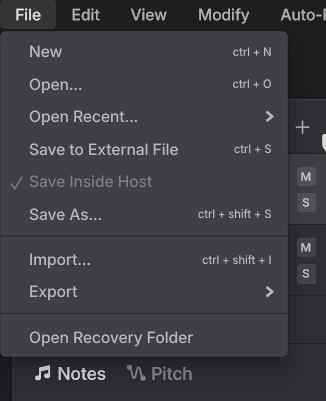
¶ Save Inside Host
Saves within the project of the host application (DAW). An .ixp file will not be created.
Saving the DAW project also saves the Instrument X edits simultaneously.
¶ Save to External File
Creates and saves a .ixp file separately from the DAW project.
The .ixp file is a project file format common to both the standalone and plugin versions of Instrument X.
When in "Save to External File" mode, reopening the DAW project will load data from the corresponding .ixp file.
¶ Save As...
This creates a new .ixp file, and subsequent project saves will be stored in that file (by using the plugin in "Save to External File" mode).
When in "Save to External File" mode, closing the DAW project will save the Instrument X project to the
.ixpfile.
There is no manual save command. Also, you cannot exit without saving.
¶ Back Up Your Current Project
- Save your current work as a
.ixpfile using "Save to External File" or "Save As...". - Then, select "Save Inside Host" or use "Save As..." and change the save location to avoid overwriting the
.ixpfile created in step 1.
¶ Set Up Audio Output Channels
The Instrument X plugin supports Multi-Channel Output.
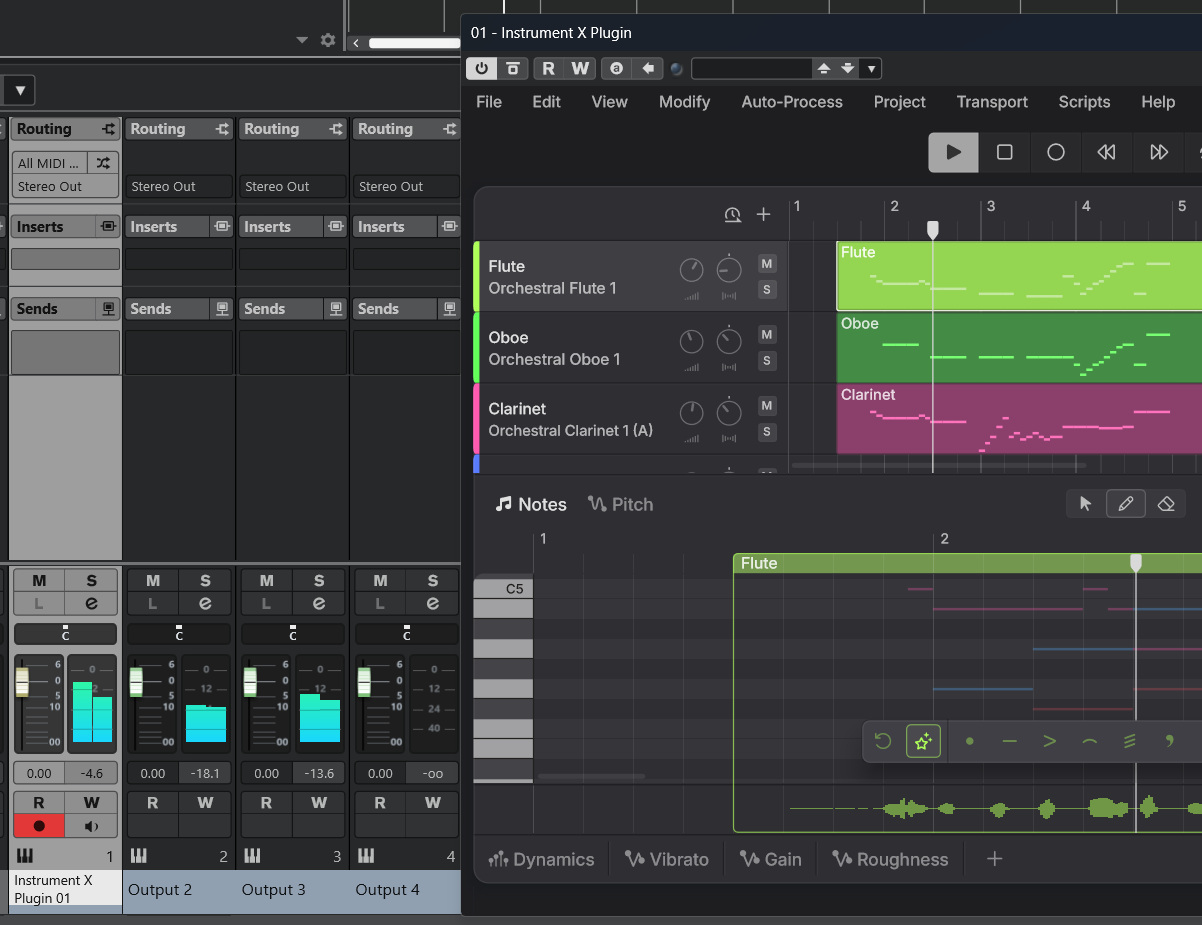
You can route each track within the plugin to a separate channel, allowing you to further process the audio in the DAW.
The plugin can output up to 16 stereo channels.
¶ Setting Up Multi-Channel Output
-
Load the Instrument X Plugin into an instrument track in your DAW.
-
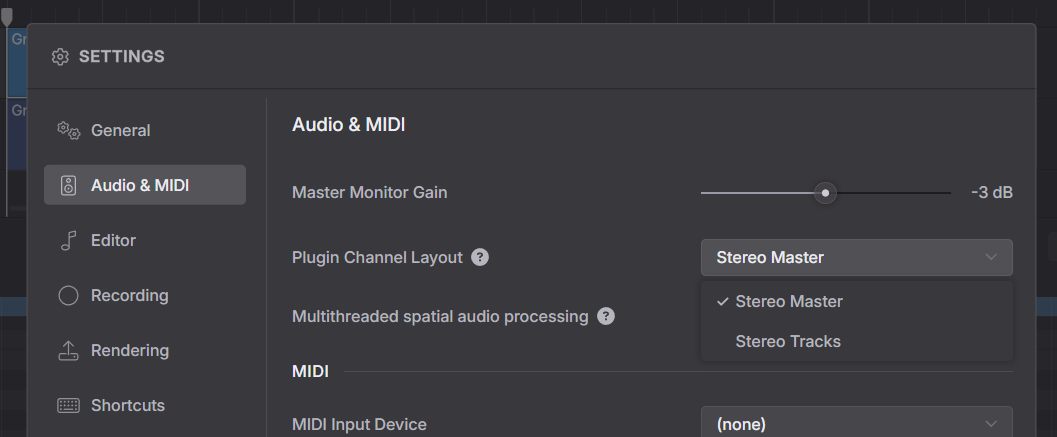
In the Settings panel, select whether to output only the master track or use multichannel output under [Audio and MIDI] > [Plugin Output Channels].
-
On the DAW side, configure the settings to handle multi-channel audio outputs individually.
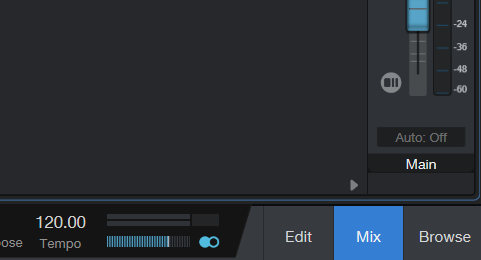
- Click [Mix] and display the console.
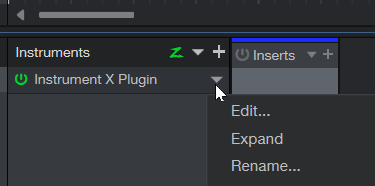
- Find the Instrument X Plugin from [Instrument], open the menu, and click [Expand].
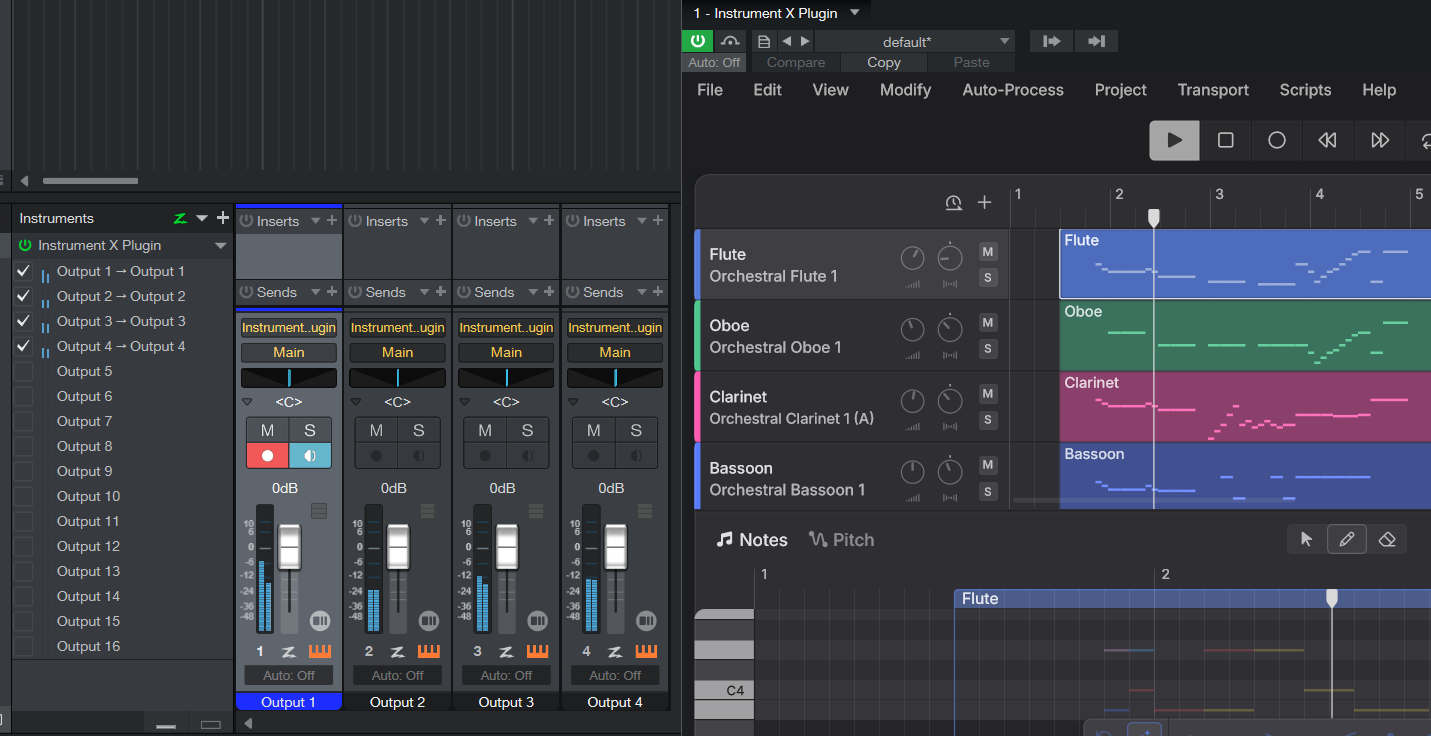
- Check the channel you want to display; channel strips for channels 2 and onwards, will be shown.
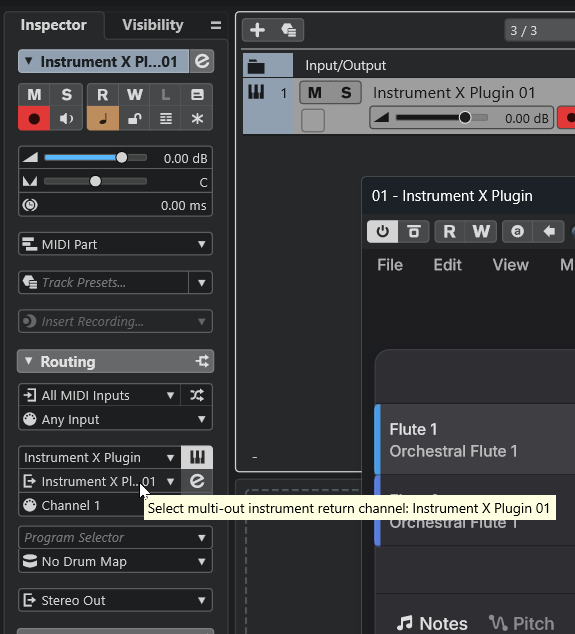
- Select a track, then in the [Inspector] tab, click [Select Multi-Output Instrument Return Channel].
- Check the channel you want to display.
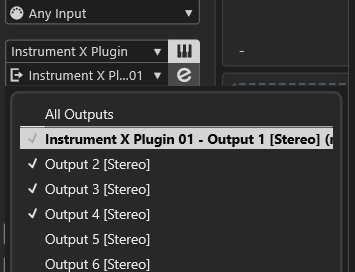
- Channel strips for channels 2 and onwards, will be displayed.
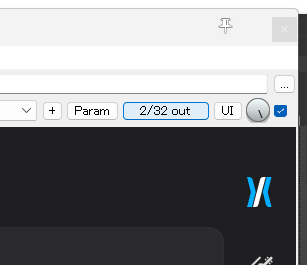
- Click the [2/32 out] button at the top right of the plugin window.
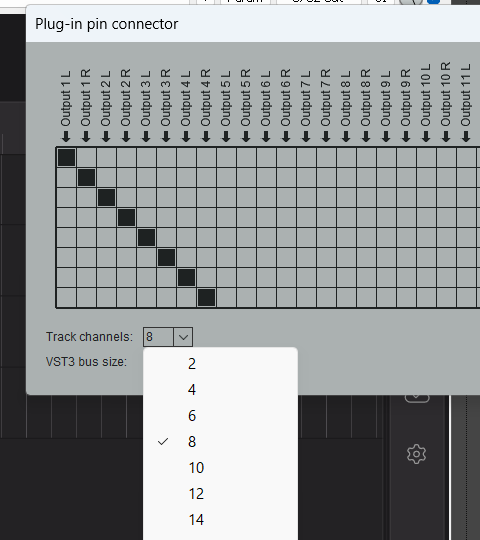
- Select the number of channels for the track. Since each Synthesizer V track outputs in stereo, the channel count will be twice the number of tracks you want to output.
For example, if you want to output 4 tracks in [Aspiration Output As Extra Channels], you will need 8 channels, and for [Aspiration Output As Extra Channels (isolated)], you will need 16 channels.
- Create empty tracks to receive the audio from the second track onwards.
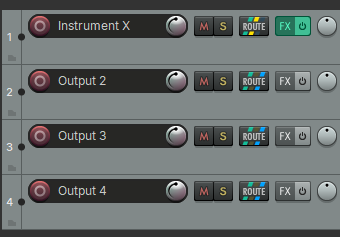
- Right-click the track's volume fader and in the [Routing] dialog that appears, set up the audio to be sent from the track with the plugin and received by the empty tracks.
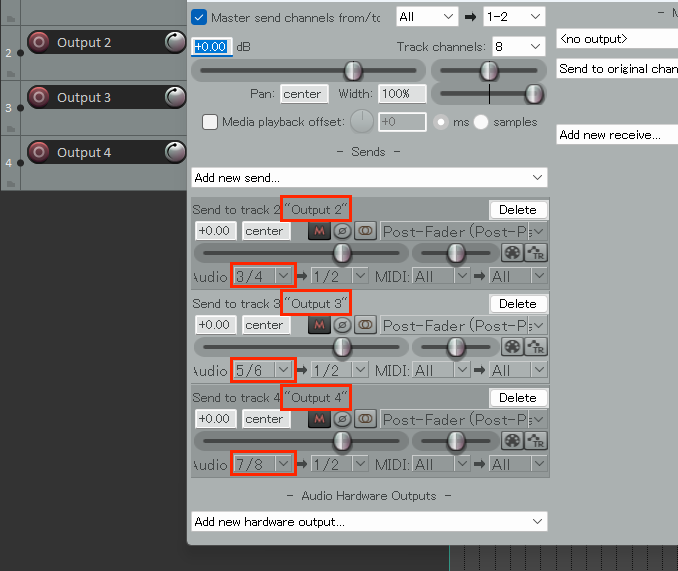
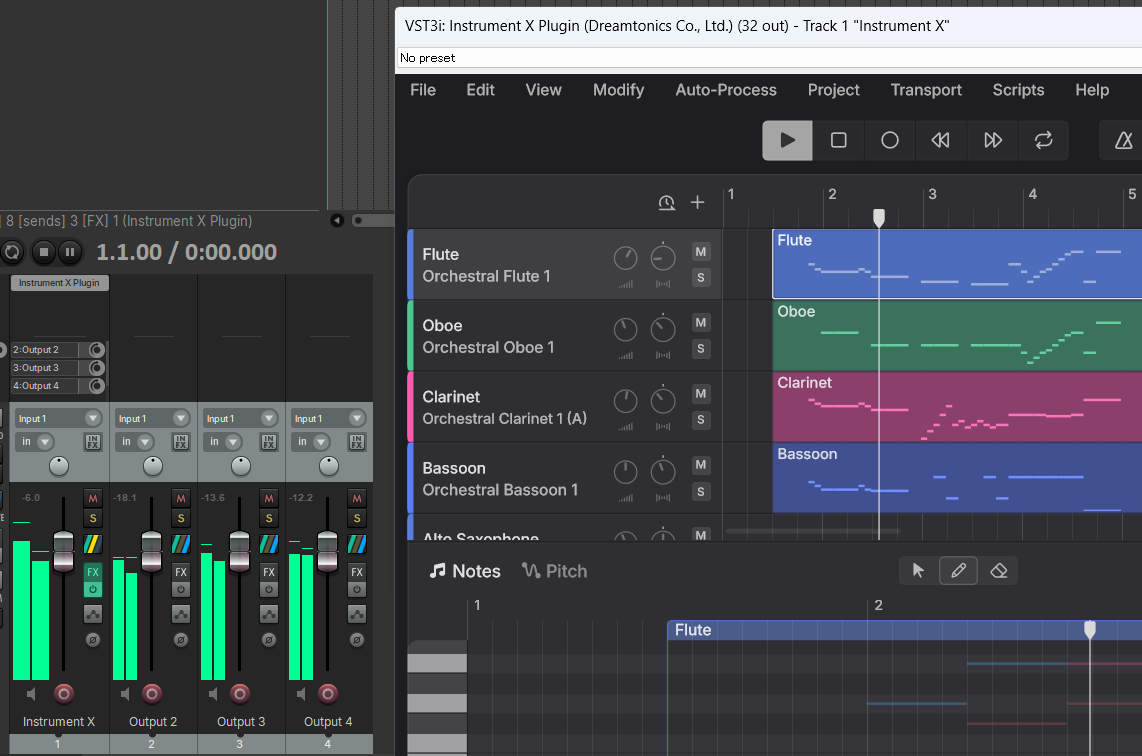
- Each output of the plugin will now be received by its respective track.
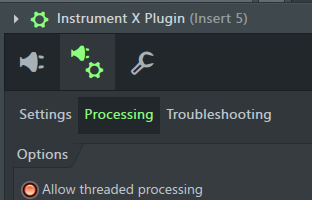
- Open [Plugin Details Settings] > [Plugin Options] > [Processing] located at the top left of the Instrument X Plugin window.
- Assign each channel to a track.
Once you set the track for Output 1, clicking [Auto map outputs] will automatically assign the subsequent channels.
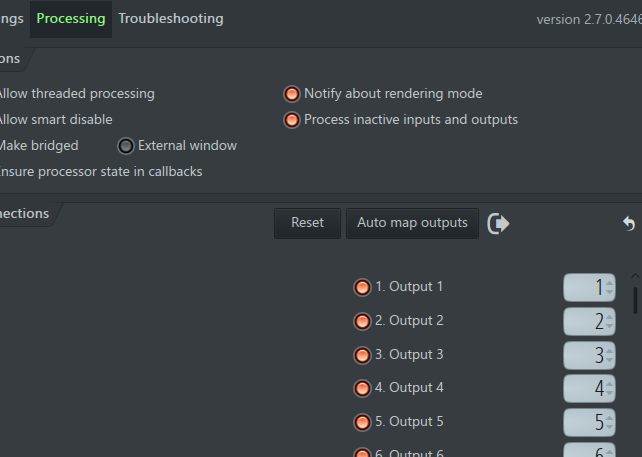
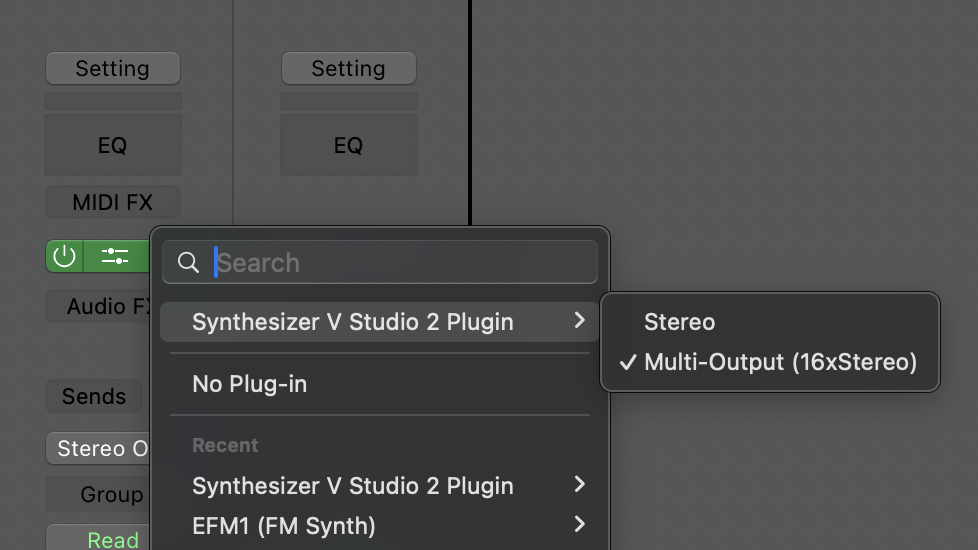
- Confirm that the Instrument X Plugin is set to multi-output; if not, click [Multi Output (16x Stereo)] to convert it.
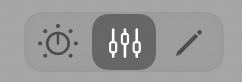
- Display the mixer.
- Click the [+] button on the channel strip to display channels 2 and onwards.
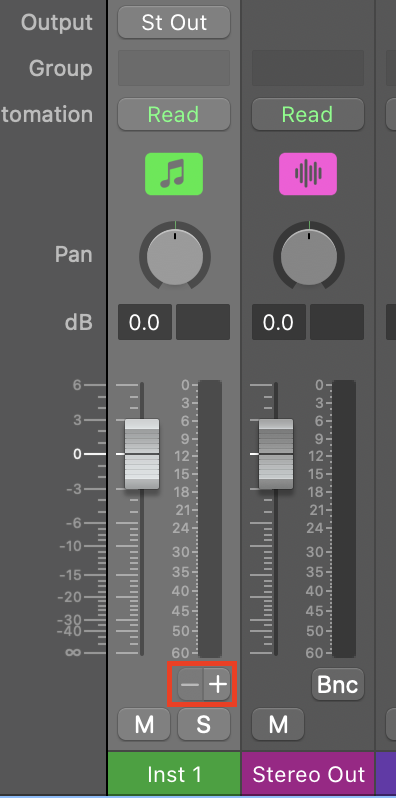
- Channels 2 and onwards can now be controlled individually.
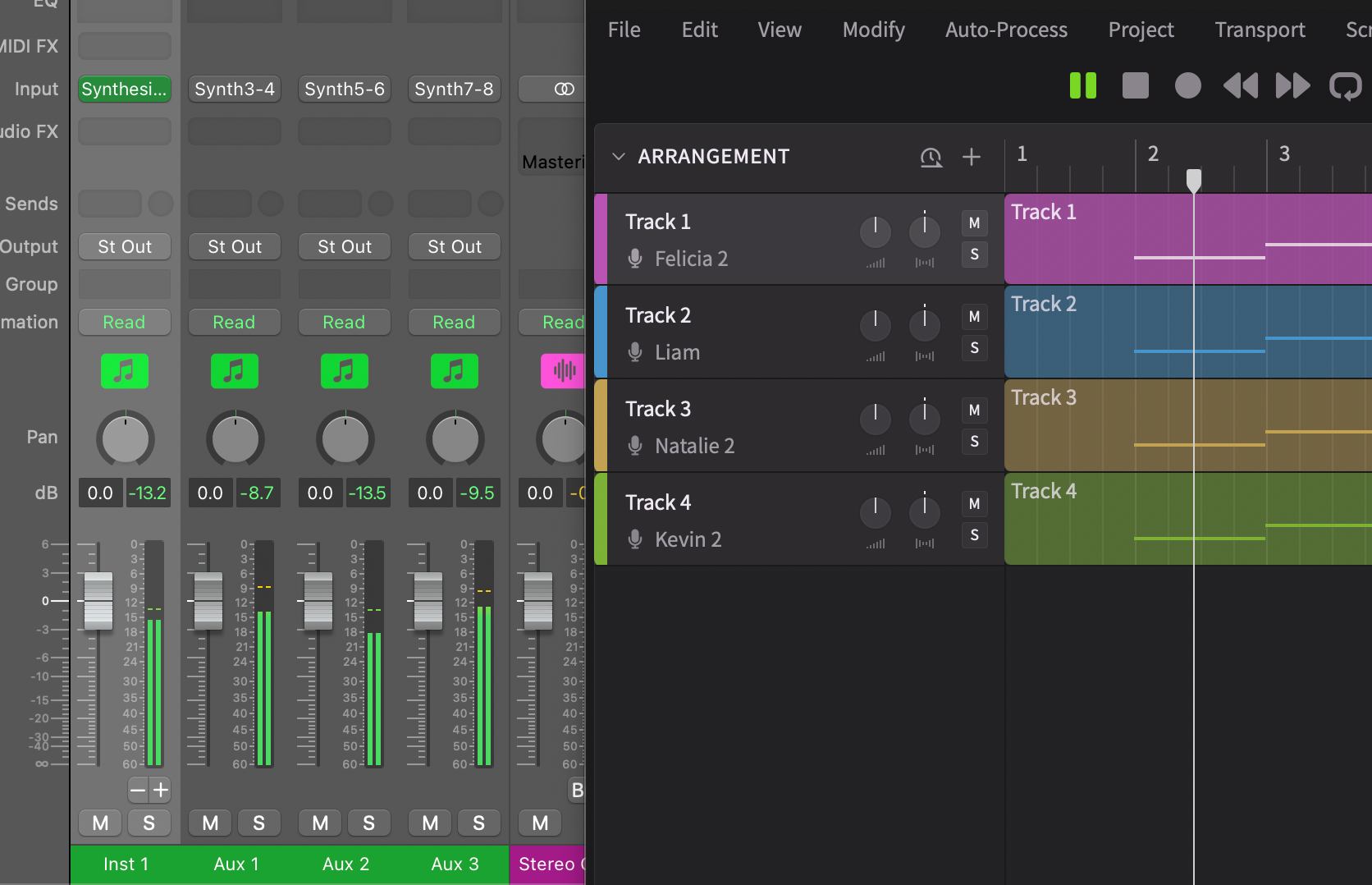
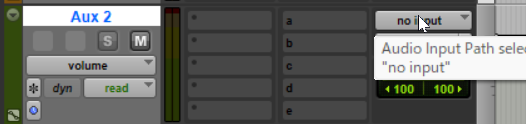
- Create an Aux track to receive the audio from the second track onwards.
- In the Aux track's input menu, select [Plugin] > [Instrument X Plugin...] > [Output 2].
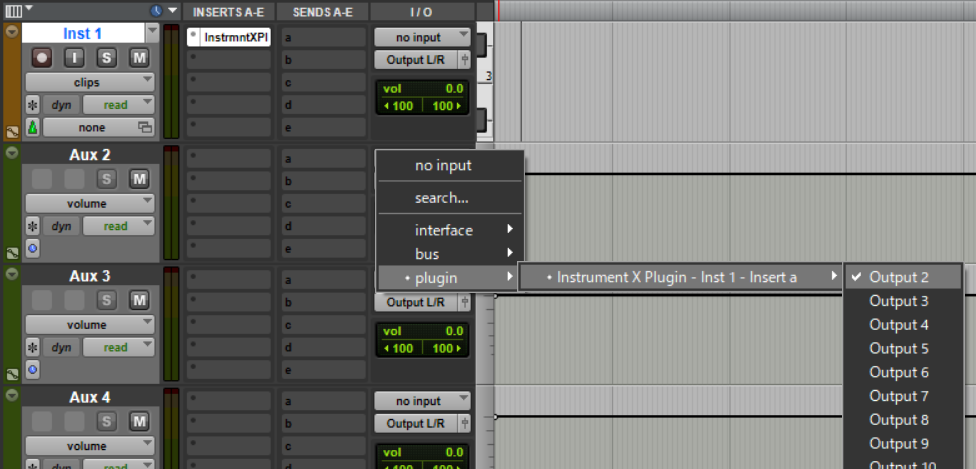
- Configure Output 3 and onwards in the same manner.